A Script Lift report connects campaign exposure to real prescription activity for a brand. Reports live in Workspace view under Reports. Both admins and marketers with workspace access can view them. See Permissions. To set up a new report, see Create a Script Lift report. For how Net Impact (Your Audience vs Control) is calculated, see Script Lift methodology.

Reports dashboard

Open Reports from the left navigation in Workspace view. The dashboard title is Reports. A tab bar filters the table by report type:
TabWhat it lists
All ReportsCampaign, Website, and Script Lift reports together
WebsiteWebsite reports only
CampaignCampaign reports only
Script LiftScript Lift reports only
Script Lift appears as its own tab alongside Campaign and Website reporting, and Script Lift rows also appear on All Reports with a type badge. Use Create report to start a new report. Search and Tags filters apply to the table. Click a row to open the report or resume a draft builder.

Script Lift tab columns

  • Name
  • Status (Draft, Processing or Active)
  • Associated Campaigns
  • Tags
  • Created (date and author)

Prerequisites

Only Active Campaigns with Script Lift Reporting & Offline Conversion Events turned on before publish can be added to a Script Lift report. Enable that upgrade in the Create Campaign Flow Reporting options step while the campaign is still a Draft, then publish and wait until the campaign is Active.

How to open a report

Starting pointWhat happens
Script Lift tab or All ReportsClick a submitted row to open the detail view
Draft rowOpens Create a Script Lift Report to finish setup
Script lift data updates every 30 days.

Report header

Each detail view shows:
  • Breadcrumbs: Reports / Script Lift / report name
  • Report name
  • Created date and creator name
  • Optional description
Status banners can appear on any tab while data loads.Associated Campaigns set the Analysis window label on each tab (+6 months post-campaign).

Tabs

Overview

Summarizes media delivery and lists campaigns tied to the report.
SectionWhat it shows
MeasurePrescription brands selected at build time (counts by category depth)
Brand Performance SummaryTotal Spend, Impressions, HCPs Reached, Avg Frequency; Analysis window when campaigns are linked
Associated CampaignsCampaign, Status, Tags, Total Spend, Impressions, HCPs Reached, Avg Frequency (sparklines on spend and impressions)

Growth

Switch between Total Impact (Gross) and Net Impact (Your Audience vs Control).

Total Impact (Gross)

Measures full prescribing volume among exposed HCPs and patients within 6 months after last exposure. New prescribers use a 720-day lookback; new patients use a 180-day lookback.
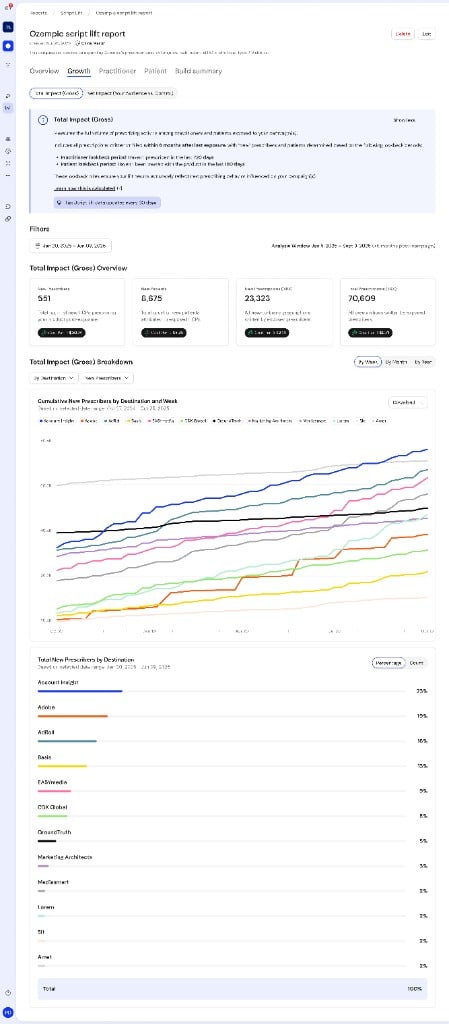
Script Lift Growth tab with Total Impact Gross selected, showing the informational callout, four KPI tiles with Cost Per badges for New Prescribers, New Patients, New Prescriptions NRx, and Total Prescriptions TRx, date range and analysis window filters, a cumulative New Prescribers by Destination and Week line chart with Download control, and a Total New Prescribers by Destination bar list with Percentage and Count toggle.
SectionControlsWhat it shows
FiltersSelect date range; Analysis windowLimits gross metrics and charts to a chosen range
Total Impact (Gross) OverviewFour fixed metricsNew Prescribers, New Patients, New Prescriptions (NRX), Total Prescriptions (TRX); each tile includes a Cost Per → badge
Total Impact (Gross) BreakdownBy Week / By Month / By Year; By Destination / By Campaign / By Creative Type; metric selectorCumulative line chart with series legend; Total … by … bar list with Percentage / Count toggle
The line chart title follows the pattern Cumulative {metric} by {dimension} and {Week|Month|Year}. Use Download on the chart card to export the chart.

Net Impact (Your Audience vs Control)

Shows incremental prescribing versus the control group after baseline adjustment, using the same 6-month exposure window and 720-day / 180-day new-entity lookbacks. See Script Lift methodology for the matching logic behind this view.
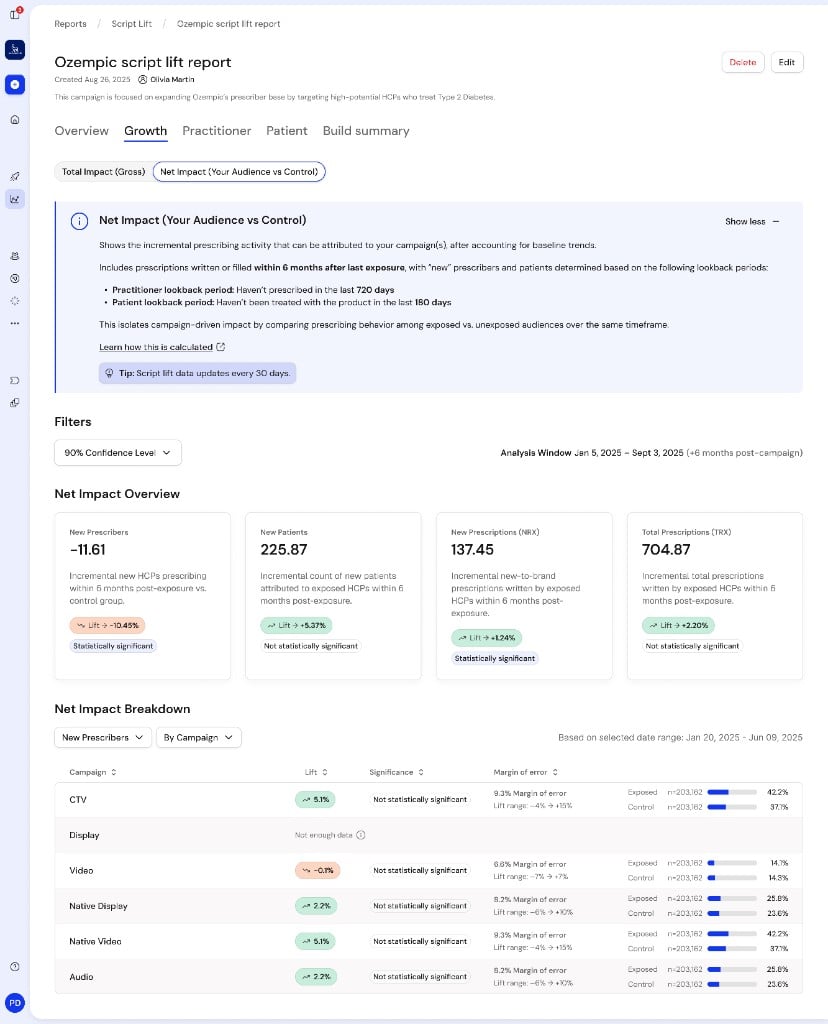
Script Lift Growth tab with Net Impact Your Audience vs Control selected, showing the informational callout with practitioner and patient lookback periods, a 90 percent confidence level filter, four overview cards with absolute impact, Lift percentage pills, and significance labels, and a Net Impact Breakdown table by campaign with lift, margin of error, and Exposed versus Control comparison bars.
SectionControlsWhat it shows
Filters80% / 85% / 90% / 95% Confidence Level; Analysis windowConfidence applies to overview cards and breakdown rows
Net Impact OverviewFour metricsAbsolute impact value, Lift → percentage pill (green up / orange down), Statistically significant or Not statistically significant; Not enough data when results are unavailable
Net Impact BreakdownMetric selector; By Campaign / By Channel / By DestinationTable: dimension name, Lift, Significance, Margin of error (with Lift range), Exposed and Control bars with n= sample sizes

Practitioner

Total Impact (Gross) — Practitioner describes gross prescribing among exposed HCPs; new prescribers use a 720-day lookback.
SectionControlsWhat it shows
FiltersAll campaigns or one campaign; Quick viewsHCPs Reached, Total Attributed HCPs (TRx badge), New-to-Brand Prescribers (NBRx badge)
Conversion summaryHeadline count, HCPs Reached, Conversion Rate
Practitioner Breakdownpercentage / countBy specialty, Competitive Overlap, Prescriber Condition Match, By decile, By state, By city, By device, By gender

Patient

Total Impact (Gross) — Patient covers patients prescribed by exposed HCPs; new patients use a 180-day lookback.
SectionControlsWhat it shows
FiltersAll campaigns or one campaign; Quick viewsTotal Attributed Patients (TRx), New-to-Brand Patients (NBRx)
Conversion summaryHeadline count, Total Patients, Conversion Rate
Patient BreakdownBy age: All / Female / Male / Unknown; percentage / countBy gender, By state, By payer (table), By payer type

Build summary

Read-only recap of report setup:
  • Tags
  • Measure (prescription brand depths)
  • Category (competitive categories)
  • Conditions
  • Lookback window: Prescriber 720 days, Patient 180 days